Objective
- Understand programming errors
- Learn to use the Visual C++ Debugger
Preparation
- Review sections 1.6 and 3.10 from Starting Out with C++ by Gattis, Walters, and Muganda.
- Read about the Visual C++ Debugger Execution Control at http://msdn.microsoft.com/en-us/library/vstudio/y740d9d3%28v=vs.100%29.aspx/css.
Read about:
- Starting (or Continuing) Execution
- Breaking Execution
- Stopping Execution
- Stepping Through Your Application
- Running to a Specified Location
- Setting the Execution Point
- Print and complete Worksheet 6.
Programming
Part 1
- Write a program to evaluate the following equations using floating-point variables and arithmetic:
a = a + bc + dx = (a + b)(c + d)
y = cx - 4
xy
b = ---
x2z = c
y = a + b + x + y
x = x2 + y2 + z2
The values a, b, c, and d should be input by the user from the keyboard and the final values of all variables should be displayed on the monitor. Be sure all syntax errors are corrected.
Part 2: Visual C++ Debugger

- Place the cursor on the first executable statement of your program. This should be the first statement after your variable declarations.
- Right-click in the source window and choose Run to Cursor from the shortcut menu. This will start a debugging session and execute your program up to the line where your cursor was placed. The yellow arrow
 in the left column of the source window indicates the statement that will be executed next.
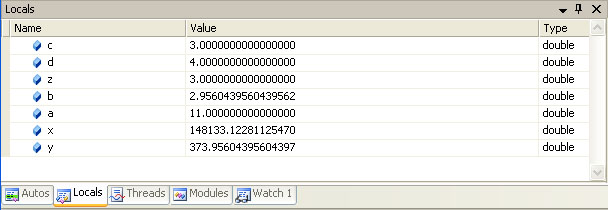
- Select the Locals tab in the Watch Window. This will display the current value for all of the local variables in the main function. They should all be initial values.
- Click the Step Over button
 on the Debug toolbar or select Step Over from the Debug menu or press F10. This causes the current statement in your program to be executed. The yellow arrow will move to the next statement after the current statement is successfully executed.
- Continue using the Step Over command to step through your program line by line. For input statements, the program will pause until you enter the input from the execution window. The local variables' values will be updated in the Watch Window as their values change. Enter values of 1, 2, 3, and 4 for a, b, c, and d respectively as prompted in the execution window. Watch the values of your variables in the Watch Window to make sure that the values are what your expect them to be. The final values for a, b, c, d, x, y, and z are shown below.
- Make any corrections necessary to your program. To continue debugging after you have made a correction, you will either need to restart the debugger.
- Print the Grade Sheet. Show your program and watch window to the instructor.